
LinkedIn does not permit third-party software that automates activity on its website. That covers bots, crawlers, browser plug-ins and extensions that scrape data, change how the site looks, or act on a member’s behalf. It does not mean every workflow around LinkedIn is off limits. Research, signal tracking, CRM sync, prioritization, drafting and reminders can all run on permitted routes, while the interactive actions (connecting, messaging, commenting) stay under a person’s control.
This guide explains what the policy says, where the line sits between permitted and prohibited, what happens to accounts that cross it, and how a sales team can build a repeatable outbound motion that respects the rules.
TL;DR
- LinkedIn’s help center says it does not permit third-party bots, crawlers, browser plug-ins or extensions that scrape or automate activity on the site, and that accounts using them risk restriction.
- LinkedIn does not publish a universal “safe” number of connection requests or messages. Quotas quoted by tools are the tools’ numbers, not LinkedIn’s rules.
- Permitted routes include LinkedIn’s own features (such as the native post scheduler and Sales Navigator alerts) and documented, permissioned APIs.
- The workable model for sales teams: automate upstream and downstream of LinkedIn (signals, enrichment, prioritization, drafting, CRM tasks, measurement) and keep the LinkedIn action itself human-controlled.
- “Undetectable” and “safe” are marketing claims. Judge a tool by how it connects to LinkedIn, not by what it promises.
Table of Contents
- What LinkedIn’s automation policy says
- What is permitted
- Does LinkedIn publish official limits?
- What happens when an account crosses the line
- How to assess whether a tool is permitted
- A compliant outbound motion for sales teams
- Our perspective
- Where Crono fits
- Building the internal policy
- FAQ
- Sources
What LinkedIn’s automation policy says
Two official documents carry the rule. The first is the User Agreement, and specifically Section 8.2, which lists what members must not do. The second is LinkedIn’s help center page on prohibited software and extensions, which applies those prohibitions to tools sales teams actually buy.
The help center page states that LinkedIn does not permit third-party software, including crawlers, bots, browser plug-ins or browser extensions, that scrapes, modifies the appearance of, or automates activity on its website. It adds that fake accounts and fake engagement are not allowed either, including tools that try to manipulate content algorithms. The same page notes that users of prohibited tools risk restrictions, and that those tools may stop working without notice.
Section 8.2 of the User Agreement, as the help page lists it, prohibits several specific behaviors:
- Developing, supporting or using software, scripts, robots, crawlers, browser plugins or add-ons to scrape the services or copy profiles and other data.
- Using bots or other automated methods to access the services, add or download contacts, send or redirect messages, or create and engage with posts.
- Engaging in inauthentic activity, such as automated likes or comments meant to drive engagement.
The agreement also prohibits bypassing LinkedIn’s security features, access controls or use limits, and copying or distributing information obtained from LinkedIn without the content owner’s consent. Both the 8.2 text and the help page are worth reading in full and saving. LinkedIn revises its terms, so check the current versions before you write internal guidance.
The practical reading
The policy is written around how an action is performed, not around the word “automation”. A person who types a message and presses send is acting. A script that logs in with stored credentials or copied session cookies and clicks through the interface is a third-party tool acting as that person. The second pattern is what the policy targets.
That is why a practical test beats a keyword search through the terms. Ask three questions of any workflow:
- Does it use a LinkedIn feature or a documented API, or does it simulate a browser session?
- Does it copy profile data out of LinkedIn at scale?
- Does it send, connect, like or comment without a person deciding to do it?
A “yes” to the second or third, or a “simulate a browser session” answer to the first, puts the workflow on the prohibited side.
What is permitted
Not every use of technology around LinkedIn is blocked. LinkedIn’s own products and documented integrations are the safer route, and they cover more of a sales workflow than most teams assume.
According to a review of the rules and permitted workflows, the allowed set includes LinkedIn’s native scheduler, Sales Navigator alerts, supported CRM sync and approved APIs. Drafts can be reviewed and posted by a person. Tools that act through browser extensions or scripts fall into a different, prohibited category.
In practice that gives sales teams these building blocks:
| Activity | Permitted route | Prohibited pattern |
|---|---|---|
| Posting content | Native scheduler, or a documented API with member authorization | Extension or script that publishes through a simulated session |
| Finding accounts and leads | Sales Navigator saved searches and alerts | Crawler or scraper copying profile data |
| Logging activity | Supported CRM sync, CRM tasks and reminders | Bot that exports contacts or messages |
| Writing messages | AI or template drafts reviewed and sent by a person | Tool that sends messages or connection requests as the user |
| Engagement | Person reads, reacts and comments | Automated likes and comments |
The API route deserves a note. Developer documentation for sharing on LinkedIn ties post creation on a member’s behalf to a specific permission (w_member_social) granted through authorization, as described in a developer walkthrough of LinkedIn’s own rules. The point for buyers is the mechanism: scoped permissions granted by the member are a different thing from a tool holding a password or cookie and imitating clicks.
Drafting is not the same as acting
A frequent confusion: AI-written copy is not what the policy restricts. Using AI or templates to draft a message, a comment idea or a post is a content task. The same developer analysis draws the line at what happens next: a human who reviews and posts a draft is in a different position from an extension that posts comments automatically. If you want to see this separation applied to content work, an example workflow that keeps content preparation apart from automated user actions shows how preparation and publishing can be treated as different steps.
Does LinkedIn publish official limits?
Not as a universal quota. This is where most online advice goes wrong. You will see figures such as weekly connection caps or daily profile-view numbers repeated across tool vendors’ blogs. Those are the vendors’ own operating limits or observations. The materials LinkedIn itself publishes say it may limit connections and members’ ability to contact others, but they do not offer a number that makes unauthorized automation safe.
The consequence is simple. If a tool tells you that staying under a particular daily count keeps you compliant, that is a claim about detection risk, not about the rule. The rule is about whether the tool is permitted at all. A tool operating within a made-up quota is still a prohibited tool if it automates activity on the website.
What happens when an account crosses the line
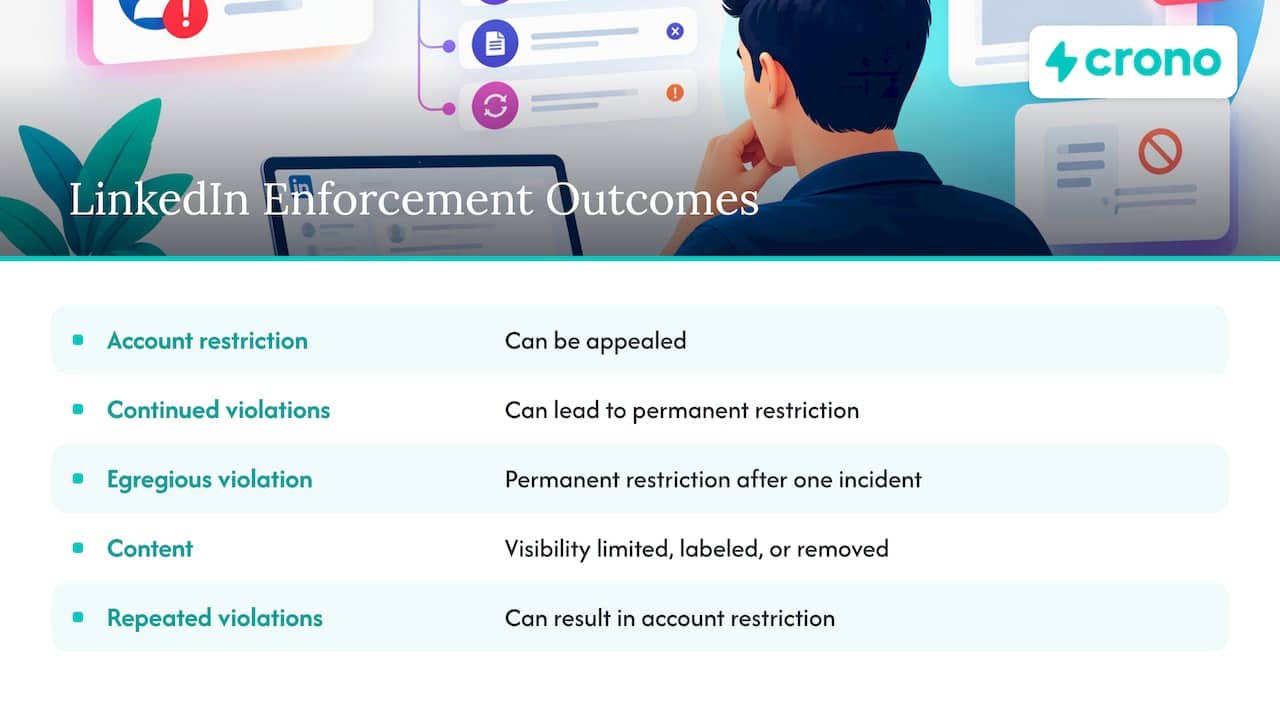
Enforcement is graduated, and LinkedIn describes its own process in public reporting. In its California Terms of Service report for the second half of 2024, material quoted from LinkedIn explains that account restrictions can be appealed, continued violations can lead to permanent restriction, and certain egregious violations can result in permanent restriction after a single violation.
LinkedIn’s Professional Community Policies add a content layer: depending on severity, LinkedIn may limit the visibility of content, label or remove it, and repeated or egregious violations can result in account restriction.
For a sales leader, the cost is rarely just the account. A restricted seller loses their network, their conversation history and their pipeline momentum, and the team loses the hours spent rebuilding. That is the real business case for compliance, and it holds whatever a tool’s marketing says about detection.
If you receive a warning or restriction
- Stop the activity that triggered it. Turn off any extension, script or connected tool that touches LinkedIn, and sign out of unrecognized sessions.
- Use the appeal route. LinkedIn’s process allows appeals of restrictions, so follow the instructions in the notice and respond promptly and factually.
- Audit the stack. List every tool that logs in to or reads from LinkedIn on behalf of the seller. Remove anything that works through a browser session or stored credentials.
- Move the workflow to permitted routes before the account is restored, so the same pattern does not repeat.
How to assess whether a tool is permitted
Vendors rarely describe their method in the first paragraph of a landing page. A short checklist helps procurement and RevOps teams ask better questions.
- How does it connect to LinkedIn? A documented, permissioned API or a LinkedIn product is one thing. Logging in with stored credentials or copied cookies and simulating browser actions is another.
- Does it acknowledge LinkedIn’s rules? A vendor that addresses the policy directly is giving you something to evaluate. One that ignores it, or presents its own limits as LinkedIn’s, is not.
- What does it do to profile data? Anything that scrapes or bulk-copies profile data runs into Section 8.2.
- What happens when LinkedIn changes something? LinkedIn says prohibited tools may stop working without notice. A workflow that depends on one can fail mid-campaign.
- Does “undetectable” appear in the pitch? Treat it as a warning. Whether a tool is detected today says nothing about whether it is permitted.
A compliant outbound motion for sales teams
The most useful reframing is this: automation belongs upstream and downstream of LinkedIn’s interactive actions. The click that connects, messages, comments or reacts stays with a person (or a documented API), and nearly everything around it can be systematized.
Upstream: find and prioritize
- Build Sales Navigator saved searches and alerts for your ideal customer profile and for account changes such as new roles.
- Combine those alerts with other buying signals from permitted sources, so reps start the day with a ranked list, not a blank search box.
- Enrich contact records from permitted data sources and keep them clean in the CRM. Our guides on data enrichment best practices and CRM deduplication cover the groundwork.
At the point of action: keep it human
- Let AI draft the first version of a connection note or follow-up, then have the seller review, edit and send it. Rewriting a rough draft in your voice is the kind of drafting task our Rewrite with AI feature is built around.
- Have reps do the reading, reacting and commenting themselves. Authentic engagement is what the policy protects, and it is also what gets replies.
- Use CRM tasks and reminders to tell each rep which LinkedIn touch is due, on which account, and why.
Downstream: log, measure, follow up
- Sync activity to the CRM through supported integrations so reporting reflects what happened.
- Trigger the next step on a channel where automation is a normal part of the toolset, such as email sequences and call tasks, rather than pushing more volume through LinkedIn.
- Measure reply rates, meetings booked and pipeline created by signal type, then feed the results back into prioritization.
This is why multichannel design matters for compliance as well as results. A team that depends on LinkedIn alone has a single point of failure. A team running two to four channels in coordination, as described in our multichannel outreach playbook, can keep LinkedIn human and still hold its pace. For teams that want to see how this works in practice, a look at AI-assisted outbound sales workflows shows how technology can carry the preparation and relationship tracking while people handle the conversations.
A worked example
Consider a 12-person sales team that sells to mid-market software companies. Before, each rep built their own lists, copied contacts by hand, and a few used browser extensions to send connection requests in bulk. After a restriction scare, the head of sales redesigns the process:
- RevOps defines the ICP and sets Sales Navigator alerts for target accounts. Alerts and other buying signals feed one prioritized queue in the CRM.
- Enrichment fills in missing emails, titles and company data from permitted sources, and deduplication keeps records clean.
- For each top-priority contact, the platform produces a draft message and a recommended channel. The rep reviews the draft, personalizes it and sends it themselves, or sends the email touch from the sequence.
- Every touch is logged to the CRM, and a reminder schedules the next one.
- Weekly, the team reviews which signals produced meetings and adjusts the queue rules.
Nothing in that flow depends on a script acting as a seller on LinkedIn. The reps spend their time on the parts that need judgment, and the system handles the repetitive work around them.
Our perspective
Most teams treat LinkedIn automation as a volume question: how many requests per day can we push before something breaks? We think that is the wrong question. The policy is about who acts, and the revenue question is about which accounts deserve a human touch right now.
When we built Crono as a sales execution layer, the goal was to connect the CRM and the tools a team already uses, so that signals, enrichment, prioritization, workflows and AI agents all work from the same picture. Our view is that the largest share of wasted rep time sits outside the send button: hunting for the right accounts, cleaning data, deciding who to contact first, writing first drafts, logging activity and remembering follow-ups. Those are the tasks a unified execution platform can take on.
That is also why we advise leaders to design outreach around signals and orchestration rather than raw activity. A well-prioritized list worked by people who know why each account matters will usually beat a larger, blunter one, and it does not put the team’s accounts at risk. Check how any tool in your stack connects to LinkedIn, keep the interactive actions in human hands, and put your automation where it carries the least policy risk and the most leverage.
Alex
Where Crono fits
Crono connects your CRM and sales tools into one execution layer where people and AI agents work together: buying signals, data enrichment, workflow automation, AI-driven message personalization, multichannel engagement and pipeline analytics. For a team rebuilding its LinkedIn approach, that means more of the prospecting preparation and follow-through can run in one place, while sellers keep control of how and when they engage.
Plans are billed per seat. Pro starts at €79 per month per seat and Ultra at €119 per month per seat, with an Enterprise option for larger teams. If you want AI agents working on prospecting tasks with usage-based credits, the Agentic Sales Engine is offered at €99 per month for 10,000 credits, €199 per month for 30,000 credits and €499 per month for 100,000 credits.
If you would like to see how signals, enrichment and workflows come together for your team, you can start from the Crono homepage and book a demo or trial.
Building the internal policy
A written policy turns this from individual judgment into team practice. Keep it to one page and include:
- Approved tools and routes. A list of what sellers may connect to LinkedIn, and the reason each is permitted.
- Prohibited patterns. Plain statements: no scraping, no bots, no browser extensions that automate actions, no sharing of credentials or session cookies with any tool.
- Review rule for AI drafts. Every AI-drafted message is read and sent by the seller.
- Escalation steps. Who to tell if a seller receives a warning, and who handles the appeal.
- Vendor questions. The checklist above, applied before any new tool is trialed.
- A review date. Terms change. Assign an owner to recheck LinkedIn’s current rules on a regular schedule.
For the people side, our guides on social selling and how outbound sales is changing with AI are useful training material for new reps. If you operate in Europe as well, the GDPR-focused guide for B2B leaders covers the data protection side, which is separate from LinkedIn’s own rules.
FAQ
Is LinkedIn automation against the rules?
Automation that runs through third-party software acting on the website is. LinkedIn’s help center says it does not permit bots, crawlers, browser plug-ins or extensions that scrape, modify or automate activity on the site. LinkedIn’s own features and documented APIs are a different matter, and they are the route to build on.
Can I use AI to write LinkedIn messages?
Drafting is a content task, and a person who reviews a draft and sends it is acting as themselves. What the policy targets is software that sends messages, connection requests or comments on the member’s behalf. Keep a human at the send step and your drafting workflow stays on the right side of that line.
Is there an official safe limit for connection requests per day?
The materials LinkedIn publishes do not give a universal number that makes unauthorized automation safe. LinkedIn says it may limit connections and the ability to contact members. Any specific quota you see in a tool’s marketing is that vendor’s own figure.
What should I do if my LinkedIn account is restricted?
Stop any tool or extension touching the account, follow the appeal instructions in the notice, and audit what was connected. LinkedIn’s published process allows appeals of restrictions, and continued violations can lead to permanent restriction, so fix the cause before you appeal.
Can I connect LinkedIn to my CRM?
Yes, through supported CRM sync and approved integrations. The distinction is how the connection works: a supported, permissioned integration is permitted, while a tool that logs in with stored credentials or cookies and copies data is not.
Sources
- Prohibited software and extensions, LinkedIn Help
- LinkedIn California Terms of Service Report, H2 2024
- LinkedIn Professional Community Policies (OpenTermsArchive)
- LinkedIn Automation: Is It Safe? The Rules, Risks and a Safer Approach
- Building or Buying a LinkedIn Automation Tool? What LinkedIn’s Own Rules Allow
